Integrating Titan Server with AntiVirus Solution
Integrating Titan Server with AntiVirus Software
Question
How do I make use of the AntiVirus functionality of Titan Server?
Reasoning
I would like my Titan Server to be able to utilize an existing AntiVirus solution.
Answer
Titan Server can be integrated with existing AntiVirus solutions that support an ICAP interface. The AntiVirus feature allows an administrator to set up and leverage the automated virus scanning utility within Titan. This feature supports ICAP (Internet Content Adaptation Protocol) to provide ad hoc AntiVirus scanning. The built in ICAP client adheres to RFC 3507 and is compatible with industry standard AV servers that support ICAP. When configured and enabled, this feature allows Titan Server to scan files uploaded to the server. If you do not currently have an AntiVirus solution and would like one, consider Titan AV Server, available in cloud marketplaces (Azure, AWS, GCP), and a link to a cloud listing exists within the configuration portion of the Titan Server.
Pre-requisites
Titan Server must be installed on the system and available for use
Valid Administrator Credentials are required to make changes within Titan
AntiVirus solution must offer an ICAP interface
Specify Scanner URL as IP Address or Hostname. Default Port is 1344

Steps
Open the Titan Administrator and login using valid credentials
Navigate to the Security menu of Titan Server, and then select the “AntiVirus” tab
Check the box to Enable AntiVirus scanning. If requiring an AntiVirus solution, choose "Click Here" option to learn about Titan AV Server.
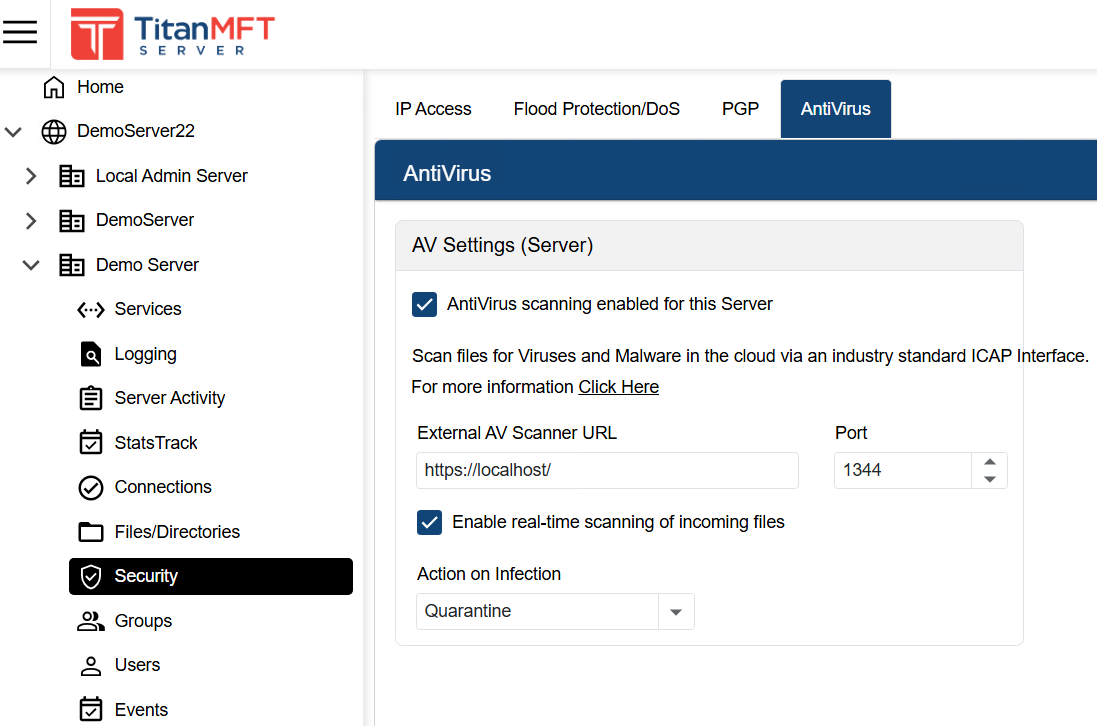
Specify Scanner URL as IP Address or Hostname. Default Port is 1344
Choose whether to have real-time scanning of all files uploaded to Titan
Enabling “real-time scanning of incoming files” results in scanning all uploaded files
Disabling “real-time scanning of incoming files” allows for using Events automation to decide when specific files should be scanned
Choose what action Titan Server should take upon encountering an infected file. The options are Delete, Allow or Quarantine. If this setting is set to Quarantine, the quarantined files will be moved to the specified AV Quarantine Directory set under the Directories tab of Files/Directories.
Delete: Deletes the file to prevent upload to Titan Server
Allow: Allows the file to continue upload to Titan Server
Quarantine: Files will be moved to the specified AV Quarantine Directory set under the Directories tab of Files/Directories within the Titan Server configuration